> ## Documentation Index
> Fetch the complete documentation index at: https://makeswift-docs-branch.mintlify.site/llms.txt
> Use this file to discover all available pages before exploring further.
# Building a Card Component in Makeswift
> Learn how to create a built-in card component that integrates with Makeswift.
As opposed to components that are created in the Visual Builder, built-in components are React components that are registered and integrated with Makeswift from code. As expected, these are available to users in the Visual Builder to use while building layouts and pages. Let's see how to create and register a built-in component.
## Prerequisites
This guide assumes that you are using TypeScript and have followed the [App Router Installation](/developer/app-router/installation) guide for your initial project setup. It also assumes you are using a [src directory](https://nextjs.org/docs/app/building-your-application/configuring/src-directory).
If your setup varies from this, please adjust the code snippets appropriately.
## Overview
In this guide, we're going to build a `Card` component that can be used to display product data. This component will need a few different properties:
* `image` - the URL of the image
* `alt` - the alt text to use for the image
* `heading` - the heading text
* `description` - the description text
* `link` - the link to navigate to
* `linkText` - the text of the link
In general, creating built-in components in Makeswift requires two things:
1. A React component
2. A file that registers the component with Makeswift
When registering a component with Makeswift, you also define all of the properties that should be editable in the Visual Builder. These properties are defined using Makeswift [controls](developer/concepts#controls) and will map to the props your React component expects.
## Creating the React component
Start by creating a `src/components/Card` directory and add an `index.tsx` file. Then, define a type for the component props based on our requirements.
```tsx src/components/Card/index.tsx theme={null}
type CardProps = {
className?: string;
image?: string;
alt: string;
heading: string;
description: string;
link: { href: string; target?: "_blank" | "_self" };
linkText: string;
};
```
All of these properties will match the properties that the user can edit in the Visual Builder by way of Makeswift [controls](developer/concepts#controls). We'll explore this more in the [registering the component](#registering-the-component) section, but the result will look like this.
Next, we can define the component itself. In this example, we'll be using the [Link](https://nextjs.org/docs/pages/api-reference/components/link) and [Image](https://nextjs.org/docs/app/api-reference/components/image) components from Next.js. Ignoring styles, the final component will look like this.
```tsx src/components/Card/index.tsx theme={null}
import Link from "next/link";
import Image from "next/image";
type CardProps = {
className?: string;
image?: string;
alt: string;
heading: string;
description: string;
link: { href: string; target?: "_blank" | "_self" };
linkText: string;
};
export function Card({
className,
image,
alt,
heading,
description,
link,
linkText,
}: CardProps) {
return (
{image && }
{heading}
{description}
{linkText}
);
}
```
## Registering the component
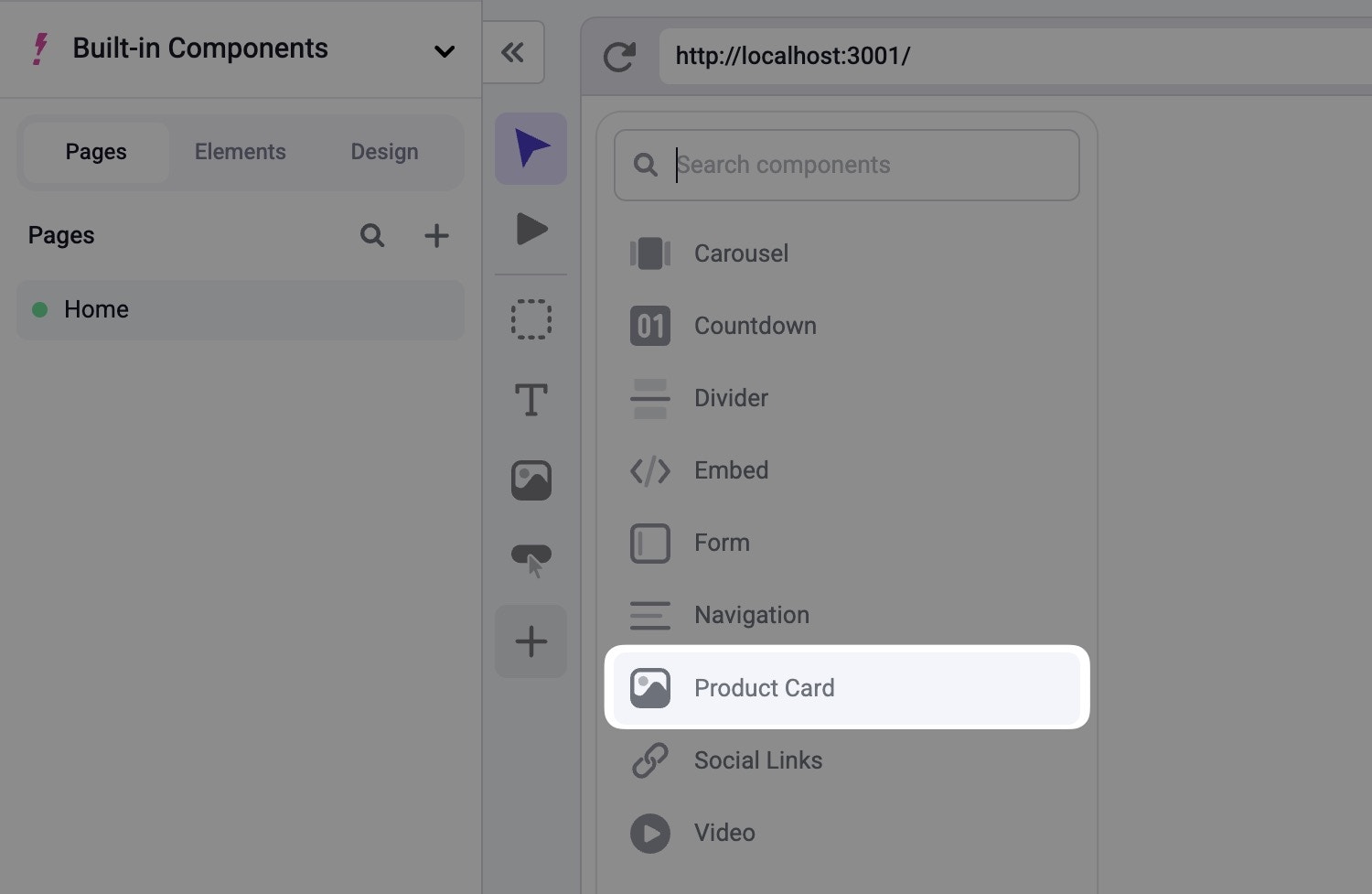
After creating the React component, we need to register that component with Makeswift. This makes the component available in the Component Tray for users to drag onto the canvas.
This is also where/how we define the properties that are exposed to the user in the Visual Builder that match the properties we just defined in the React component.
To register a component, we'll need to call [registerComponent](/developer/reference/runtime/register-component) from an instance of the [ReactRuntime](/developer/reference/runtime/constructor). If you followed the [Installation guide](/developer/app-router/installation), you should have an instance of the `ReactRuntime` defined in `src/makeswift/runtime.ts`.
When calling, `registerComponent`, you'll need to pass the React component to be registered as well as a config object with three required properties:
* `type` - a unique identifier for the component
* `label` - the label that shows up in the Visual Builder
* `props` - an object mapping of prop names to Makeswift [controls](/developer/concepts#controls)
The `type` property is stored in the Makeswift database as a unique
identifier. This means that changing the `type` property might cause side
effects. For example, if you already have an instance of this component in the
Canvas and then change the `type`, Makeswift won't recognize the original
component. In this case, you'll see a "Component not found" message.
We can register our component like so:
```ts src/components/Card/Card.makeswift.tsx theme={null}
import { runtime } from "src/makeswift/runtime";
import { Card } from "./";
runtime.registerComponent(Card, {
type: "product-card",
label: "Product Card",
props: {},
});
```
### Adding an icon
Additionally, you can include an optional `icon` property in your configuration object to specify which icon to be displayed along side your component. In this example, we'll use the `image` icon.
```ts src/components/Card/Card.makeswift.tsx theme={null}
import { runtime } from "src/makeswift/runtime";
import { Card } from "./";
runtime.registerComponent(Card, {
type: "product-card",
label: "Product Card",
icon: 'image'
props: {},
});
```
Refer to the [Icons List](/developer/reference/runtime/register-component#icons-list) for a full list of options.
### Defining props
At this point, you should see an error in your editor on the reference to the `Card` component. This is because we set `props` to be an empty object. However, `props` should be a mapping of properties to Makeswift controls that match the props the `Card` component expects.
If we update `props` accordingly, this error will go away.
Note also that as we define each of these, we'll need to import the appropriate control from `@makeswift/runtime/controls`. We'll skip this for now, but each import is included in the [final registration code](#final-registration-code) for your reference.
### Adding a Style control
We can start by using the [Style](/developer/reference/controls/style) control which allows our component to receive styles that are defined by the user in the Visual Builder. To do this, add a key of `className` to the `props` object with a value of `Style()`. Notice that `className` matches the name of the prop that our component is expecting. We'll make sure to match this for each prop we define here.
```ts theme={null}
props: {
className: Style();
}
```
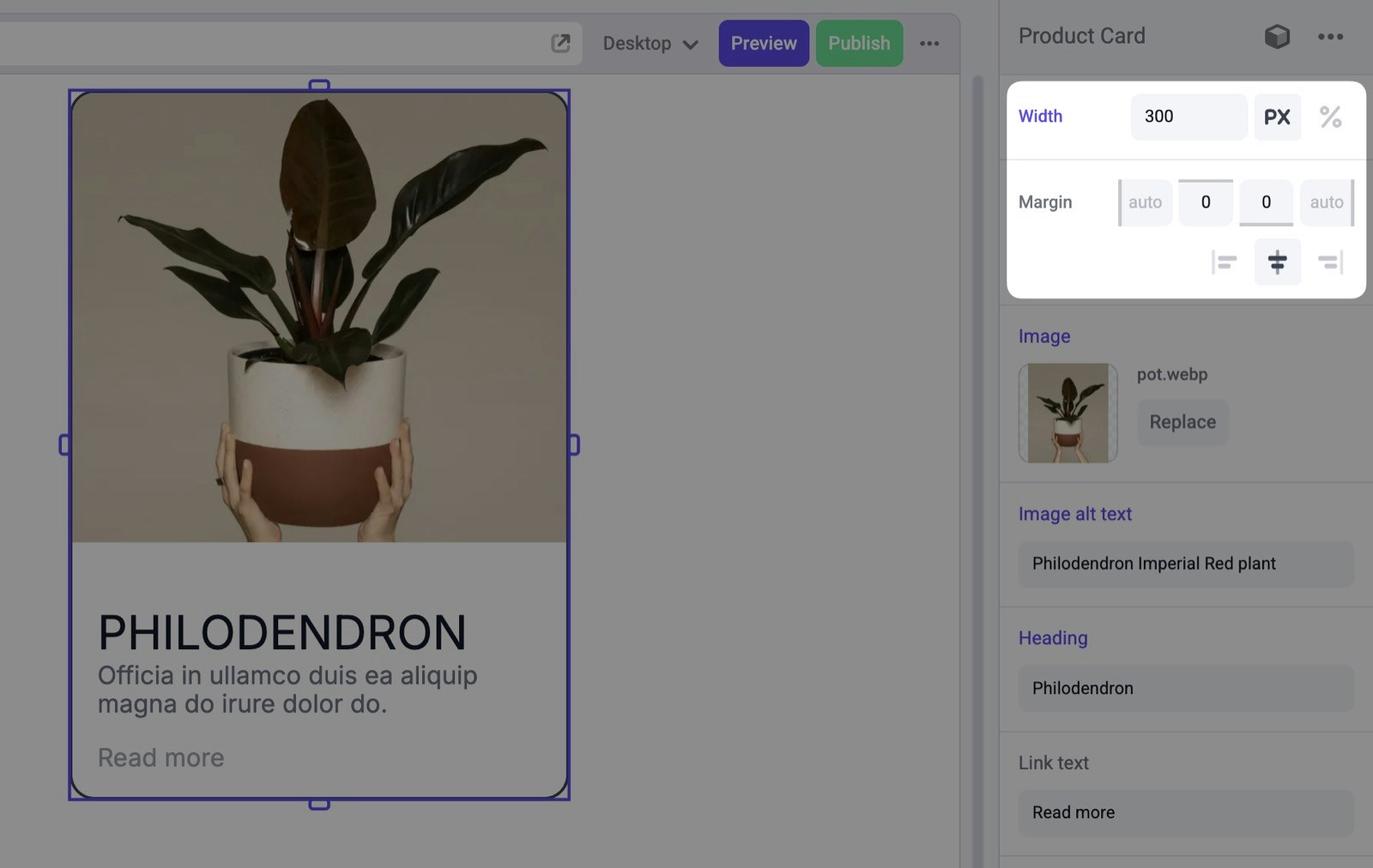
By default the `Style` controls allows the user to edit the width and margin for a component.
Additionally, you can manually select which properties you want to be visually editable by passing an object with a `properties` property like so:
```ts theme={null}
props: {
className: Style({ properties: [Style.Width, Style.Margin] });
}
```
Each Makeswift control has its own set of configuration options. You can check the documentation for full details on each one. We'll keep the default in this example, but for full details, refer to the docs for the [Style control params](/developer/reference/controls/style#params).
### Adding a Image control
For the `image` property, we can use the [Image](/developer/reference/controls/image) control.
```ts theme={null}
props: {
// ...other props
image: Image(),
}
```
By default, the [Image](/developer/reference/controls/image) control will pass the URL of the image as a `string` to the React component. However, it can also return an object that includes width and height properties like so:
```ts theme={null}
{
url: string;
dimensions: {
width: number;
height: number;
}
}
```
You can configure this by passing a configuration object with `format` property set to `Image.Format.WithDimensions`.
```ts theme={null}
const props = {
// ...other props
image: Image({
label: "Image",
format: Image.Format.WithDimensions,
}),
};
```
For now, though, we'll use the default output of a string.
The documentation for each Makeswift control includes a `Prop type` section
which defines the structure of the data that is passed to the registered React
component. For an example, refer to the [Prop type
section](/developer/reference/controls/image#prop-type) of the Image control.
### Adding TextInput controls
For the `heading` property, we can use the [TextInput](/developer/reference/controls/text-input) control.
```ts theme={null}
props: {
heading: TextInput({ label: "Heading", defaultValue: "My Heading" }),
}
```
Notice we are defining a `defaultValue` here. Because the `heading` prop in our `Card` component is marked as required, we must provide the `defaultValue`. In general, how you define your props in Makeswift should match the interface you've defined in your React component.
Let's continue by adding two more `TextInput` controls for `alt` and `linkText`. Again, we'll set `label` and `defaultValue` for both.
```ts theme={null}
props: {
// ...other props
alt: TextInput({
label: "Image alt text",
defaultValue: "",
}),
linkText: TextInput({ label: "Link text", defaultValue: "Read more" }),
}
```
### Adding a TextArea control
For the `description`, we want to allow the user to input a larger piece of text, so we can use the [TextArea](/developer/reference/controls/text-area) control.
```ts theme={null}
props: {
// ...other props
description: TextArea({
label: "Description",
defaultValue: "My description",
}),
}
```
### Adding a Link control
Lastly, we can use the [Link](/developer/reference/controls/link) control for the `link` prop.
```ts theme={null}
props: {
// ...other props
link: Link({ label: "Link" }),
}
```
By default, this controls passes the object type we are expecting in our `Card` component which is an object that includes `href` and `target` properties.
### Final registration code
After putting all of these properties together, you'll get something like this.
```ts theme={null}
import { runtime } from "src/makeswift/runtime";
import { Card } from "./";
import {
TextInput,
Image,
TextArea,
Link,
Style,
} from "@makeswift/runtime/controls";
runtime.registerComponent(Card, {
type: "product-card",
label: "Product Card",
icon: "image",
props: {
className: Style(),
image: Image(),
alt: TextInput({
label: "Image alt text",
defaultValue: "Description of the image",
}),
heading: TextInput({ label: "Heading", defaultValue: "My Heading" }),
linkText: TextInput({ label: "Link text", defaultValue: "Read more" }),
description: TextArea({
label: "Description",
defaultValue: "My description",
}),
link: Link({ label: "Link" }),
},
});
```
## Importing the component
After creating and registering the component, we need to make sure that Makeswift is aware of it by importing it in three different places.
* the root `layout.tsx` file
* the Makeswift provider in the `src/makeswift/provider.tsx` file
* the dynamic API route in `src/app/api/makeswift/[...makeswift].ts`
If you've followed the [Installation](/developer/app-router/installation) guide for initial setup, you should have a `src/makeswift/components.ts` file which is already imported into each of these three places. In this case, you can import your registration file here, and you'll be good to go.
```ts src/makeswift/components.ts theme={null}
// ...other component imports
import "src/components/Card/Card.makeswift";
```
If you didn't follow the installation guide, you'll need make sure the new component is imported in those three places manually.
## Final result
To be able to see your component within the Visual Builder, you'll need your Makeswift site to be connected to your locally running application. Again, follow the [Installation](/developer/app-router/installation) guide for details on how to do that if you aren't already set up.
Assuming your Makeswift site is connected, after refreshing the page, you should see your component listed in the Component Tray.
Then, after dragging an instance of your component onto the Canvas and filling out the details, you should see your card in action.
 In general, creating built-in components in Makeswift requires two things:
1. A React component
2. A file that registers the component with Makeswift
When registering a component with Makeswift, you also define all of the properties that should be editable in the Visual Builder. These properties are defined using Makeswift [controls](developer/concepts#controls) and will map to the props your React component expects.
## Creating the React component
Start by creating a `src/components/Card` directory and add an `index.tsx` file. Then, define a type for the component props based on our requirements.
```tsx src/components/Card/index.tsx theme={null}
type CardProps = {
className?: string;
image?: string;
alt: string;
heading: string;
description: string;
link: { href: string; target?: "_blank" | "_self" };
linkText: string;
};
```
All of these properties will match the properties that the user can edit in the Visual Builder by way of Makeswift [controls](developer/concepts#controls). We'll explore this more in the [registering the component](#registering-the-component) section, but the result will look like this.
In general, creating built-in components in Makeswift requires two things:
1. A React component
2. A file that registers the component with Makeswift
When registering a component with Makeswift, you also define all of the properties that should be editable in the Visual Builder. These properties are defined using Makeswift [controls](developer/concepts#controls) and will map to the props your React component expects.
## Creating the React component
Start by creating a `src/components/Card` directory and add an `index.tsx` file. Then, define a type for the component props based on our requirements.
```tsx src/components/Card/index.tsx theme={null}
type CardProps = {
className?: string;
image?: string;
alt: string;
heading: string;
description: string;
link: { href: string; target?: "_blank" | "_self" };
linkText: string;
};
```
All of these properties will match the properties that the user can edit in the Visual Builder by way of Makeswift [controls](developer/concepts#controls). We'll explore this more in the [registering the component](#registering-the-component) section, but the result will look like this.
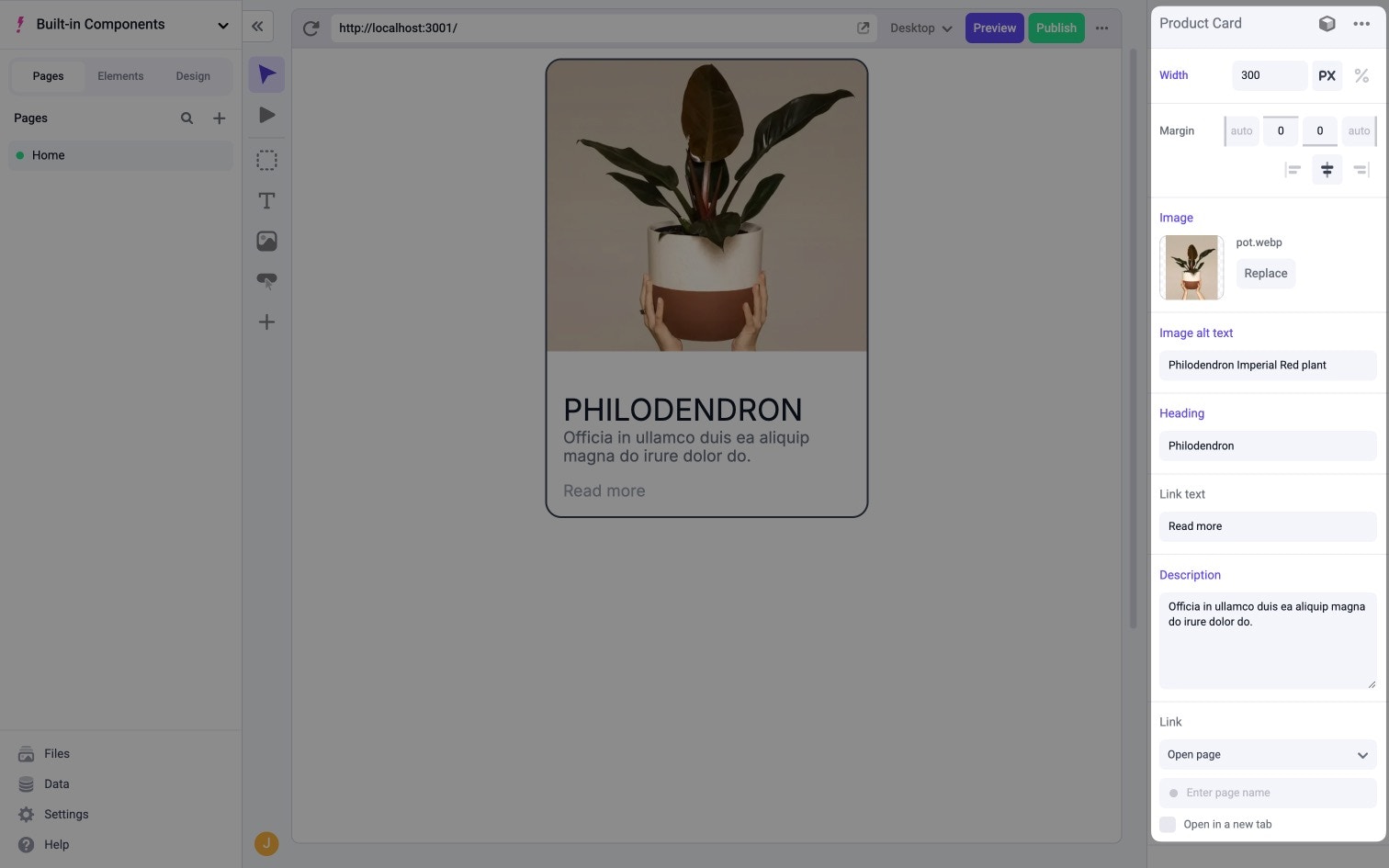 Next, we can define the component itself. In this example, we'll be using the [Link](https://nextjs.org/docs/pages/api-reference/components/link) and [Image](https://nextjs.org/docs/app/api-reference/components/image) components from Next.js. Ignoring styles, the final component will look like this.
```tsx src/components/Card/index.tsx theme={null}
import Link from "next/link";
import Image from "next/image";
type CardProps = {
className?: string;
image?: string;
alt: string;
heading: string;
description: string;
link: { href: string; target?: "_blank" | "_self" };
linkText: string;
};
export function Card({
className,
image,
alt,
heading,
description,
link,
linkText,
}: CardProps) {
return (
Next, we can define the component itself. In this example, we'll be using the [Link](https://nextjs.org/docs/pages/api-reference/components/link) and [Image](https://nextjs.org/docs/app/api-reference/components/image) components from Next.js. Ignoring styles, the final component will look like this.
```tsx src/components/Card/index.tsx theme={null}
import Link from "next/link";
import Image from "next/image";
type CardProps = {
className?: string;
image?: string;
alt: string;
heading: string;
description: string;
link: { href: string; target?: "_blank" | "_self" };
linkText: string;
};
export function Card({
className,
image,
alt,
heading,
description,
link,
linkText,
}: CardProps) {
return (
 This is also where/how we define the properties that are exposed to the user in the Visual Builder that match the properties we just defined in the React component.
To register a component, we'll need to call [registerComponent](/developer/reference/runtime/register-component) from an instance of the [ReactRuntime](/developer/reference/runtime/constructor). If you followed the [Installation guide](/developer/app-router/installation), you should have an instance of the `ReactRuntime` defined in `src/makeswift/runtime.ts`.
When calling, `registerComponent`, you'll need to pass the React component to be registered as well as a config object with three required properties:
* `type` - a unique identifier for the component
* `label` - the label that shows up in the Visual Builder
* `props` - an object mapping of prop names to Makeswift [controls](/developer/concepts#controls)
This is also where/how we define the properties that are exposed to the user in the Visual Builder that match the properties we just defined in the React component.
To register a component, we'll need to call [registerComponent](/developer/reference/runtime/register-component) from an instance of the [ReactRuntime](/developer/reference/runtime/constructor). If you followed the [Installation guide](/developer/app-router/installation), you should have an instance of the `ReactRuntime` defined in `src/makeswift/runtime.ts`.
When calling, `registerComponent`, you'll need to pass the React component to be registered as well as a config object with three required properties:
* `type` - a unique identifier for the component
* `label` - the label that shows up in the Visual Builder
* `props` - an object mapping of prop names to Makeswift [controls](/developer/concepts#controls)
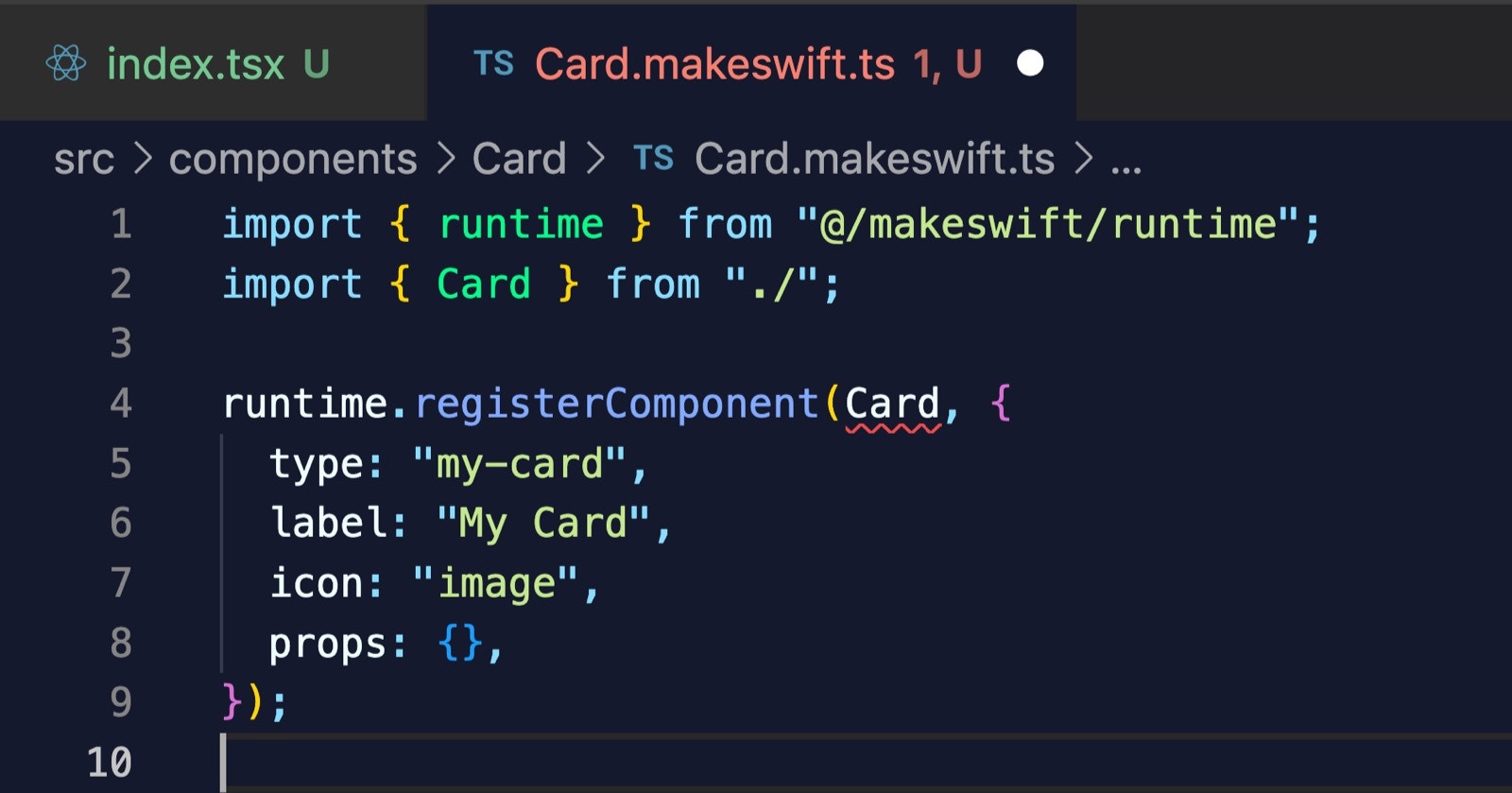 If we update `props` accordingly, this error will go away.
Note also that as we define each of these, we'll need to import the appropriate control from `@makeswift/runtime/controls`. We'll skip this for now, but each import is included in the [final registration code](#final-registration-code) for your reference.
### Adding a Style control
We can start by using the [Style](/developer/reference/controls/style) control which allows our component to receive styles that are defined by the user in the Visual Builder. To do this, add a key of `className` to the `props` object with a value of `Style()`. Notice that `className` matches the name of the prop that our component is expecting. We'll make sure to match this for each prop we define here.
```ts theme={null}
props: {
className: Style();
}
```
By default the `Style` controls allows the user to edit the width and margin for a component.
If we update `props` accordingly, this error will go away.
Note also that as we define each of these, we'll need to import the appropriate control from `@makeswift/runtime/controls`. We'll skip this for now, but each import is included in the [final registration code](#final-registration-code) for your reference.
### Adding a Style control
We can start by using the [Style](/developer/reference/controls/style) control which allows our component to receive styles that are defined by the user in the Visual Builder. To do this, add a key of `className` to the `props` object with a value of `Style()`. Notice that `className` matches the name of the prop that our component is expecting. We'll make sure to match this for each prop we define here.
```ts theme={null}
props: {
className: Style();
}
```
By default the `Style` controls allows the user to edit the width and margin for a component.
 Additionally, you can manually select which properties you want to be visually editable by passing an object with a `properties` property like so:
```ts theme={null}
props: {
className: Style({ properties: [Style.Width, Style.Margin] });
}
```
Each Makeswift control has its own set of configuration options. You can check the documentation for full details on each one. We'll keep the default in this example, but for full details, refer to the docs for the [Style control params](/developer/reference/controls/style#params).
### Adding a Image control
For the `image` property, we can use the [Image](/developer/reference/controls/image) control.
```ts theme={null}
props: {
// ...other props
image: Image(),
}
```
By default, the [Image](/developer/reference/controls/image) control will pass the URL of the image as a `string` to the React component. However, it can also return an object that includes width and height properties like so:
```ts theme={null}
{
url: string;
dimensions: {
width: number;
height: number;
}
}
```
You can configure this by passing a configuration object with `format` property set to `Image.Format.WithDimensions`.
```ts theme={null}
const props = {
// ...other props
image: Image({
label: "Image",
format: Image.Format.WithDimensions,
}),
};
```
For now, though, we'll use the default output of a string.
Additionally, you can manually select which properties you want to be visually editable by passing an object with a `properties` property like so:
```ts theme={null}
props: {
className: Style({ properties: [Style.Width, Style.Margin] });
}
```
Each Makeswift control has its own set of configuration options. You can check the documentation for full details on each one. We'll keep the default in this example, but for full details, refer to the docs for the [Style control params](/developer/reference/controls/style#params).
### Adding a Image control
For the `image` property, we can use the [Image](/developer/reference/controls/image) control.
```ts theme={null}
props: {
// ...other props
image: Image(),
}
```
By default, the [Image](/developer/reference/controls/image) control will pass the URL of the image as a `string` to the React component. However, it can also return an object that includes width and height properties like so:
```ts theme={null}
{
url: string;
dimensions: {
width: number;
height: number;
}
}
```
You can configure this by passing a configuration object with `format` property set to `Image.Format.WithDimensions`.
```ts theme={null}
const props = {
// ...other props
image: Image({
label: "Image",
format: Image.Format.WithDimensions,
}),
};
```
For now, though, we'll use the default output of a string.