Components
There are two types of components that show up in your Component Toolbar:Built-in Components
Code components that are registered with your Makeswift.
Global Components
Visually created components that are created in Makeswift.
Built-in components
Built-in components are standard React components that are registered with your host. You can use any react component as your starting point for a new component, and follow the registration documentation to make it available in your component toolbar. The controls that are available to you are configured in code but can be expanded or contracted upon by a developer. In addition to registering your own components with Makeswift, there are a few built-in components that are available to you by default.Box
Box
The Box is your most valuable and versatile tool in the Component Toolbar. It works exactly as described, like a box you can place things in, but you can use it for so much more. If you’re familiar with HTML, the easiest way to conceptualize a box is like a
<div>. From a developer perspective, boxes can also be synonmous with Slots. Use Boxes to configure different layouts.Text
Text
Double-click on any text component on your page to start editing it directly, similar to Google Docs. Text components use the “paragraph” block tag by default, but you can change it to a heading or list in the panels sidebar. Text components can also be styled with text styles.The block panel applies to an entire paragraph and correlates to the HTML tag used on the live page. Block options include:
- Paragraph
- Heading 1
- Heading 2
- Heading 3
- Heading 4
- Heading 5
- Heading 6
- Bulleted list
- Numbered list
- Blockquotes
Image
Image
The image component is placed directly as content on your page, unlike a background image that goes behind content. Think of an image as framed art on a wall, whereas the background image is the wallpaper behind it.To place an image, select an image component on your page and click “Choose” or “Replace” in the panels sidebar. Select an existing image from the files manager, or upload a new one.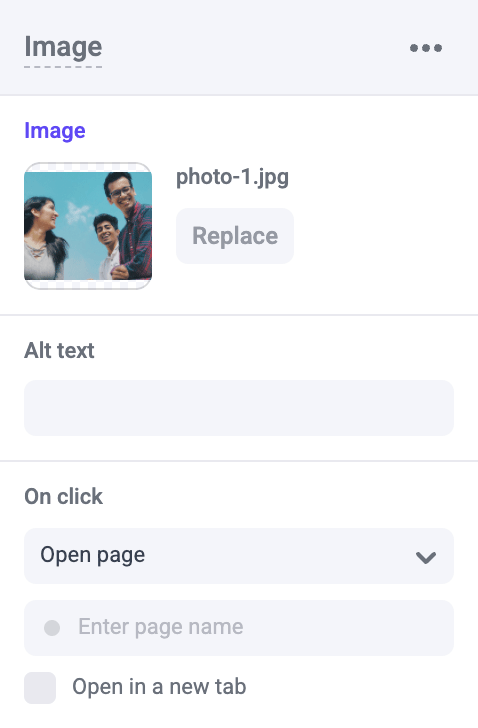
Global Components
Global components are components that you create and save visually within Makeswift and can be used across your entire site. They can be comprised of Built-in components, elements, and even other global components. They provide an easy way for you to create a reusable layout that you can easily drag an drop onto your canvas, without engaging with a developer.Creating a Global Component
You can create a global component by selecting an Element or group of Elements on your page and clicking the cube icon at the top of the Properties Sidebar. If you make an update to a Global Component, every instance of that component on your site will be updated as well.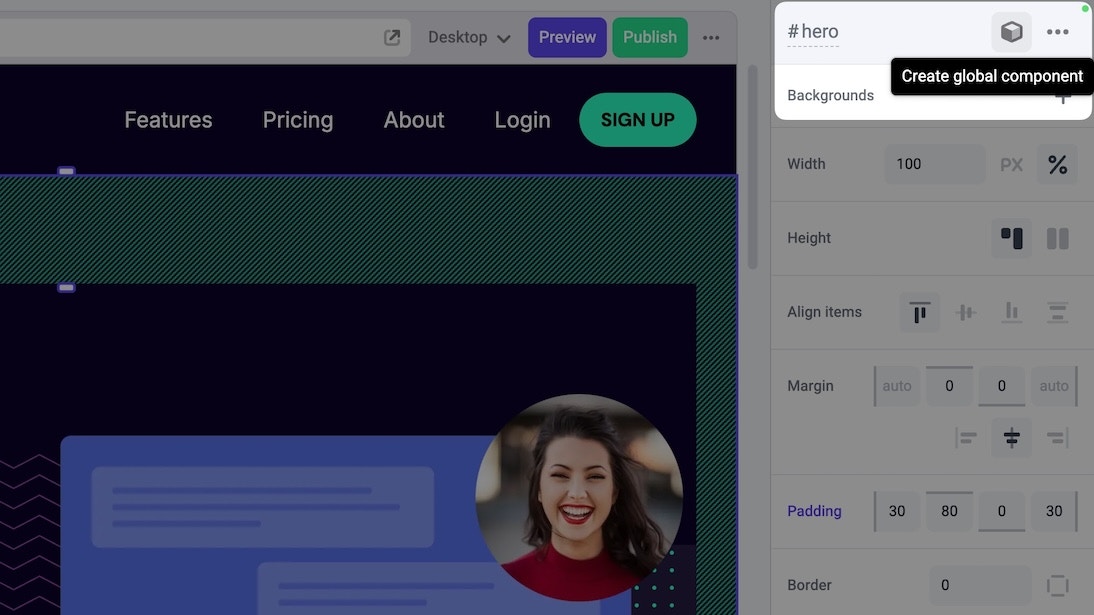
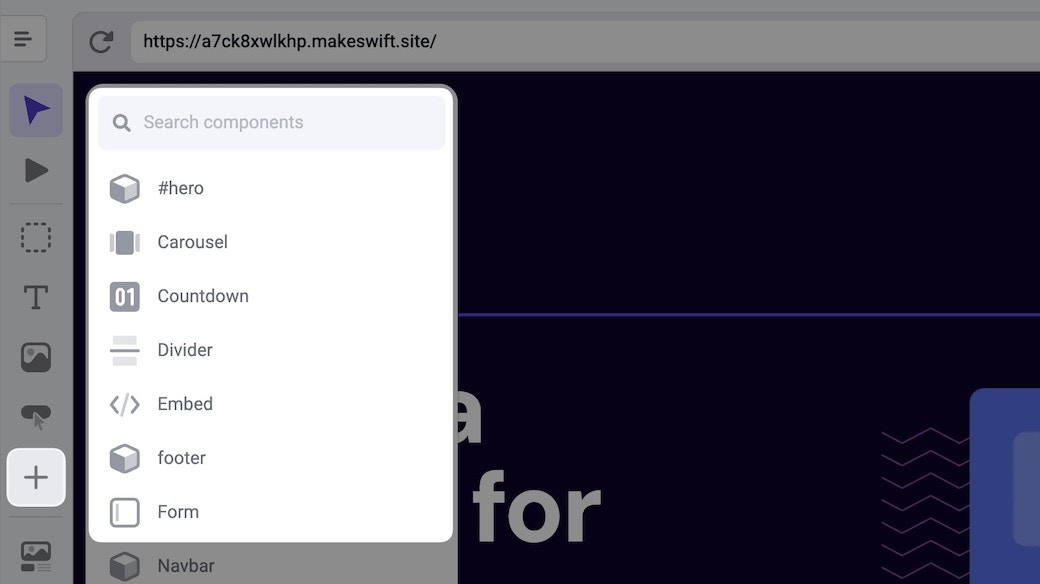
Editing a Global Component
Editing a Global Component will update all instances across your site. To edit a Global Component select any instance of that component in the Canvas and click Edit component in the Properties Sidebar.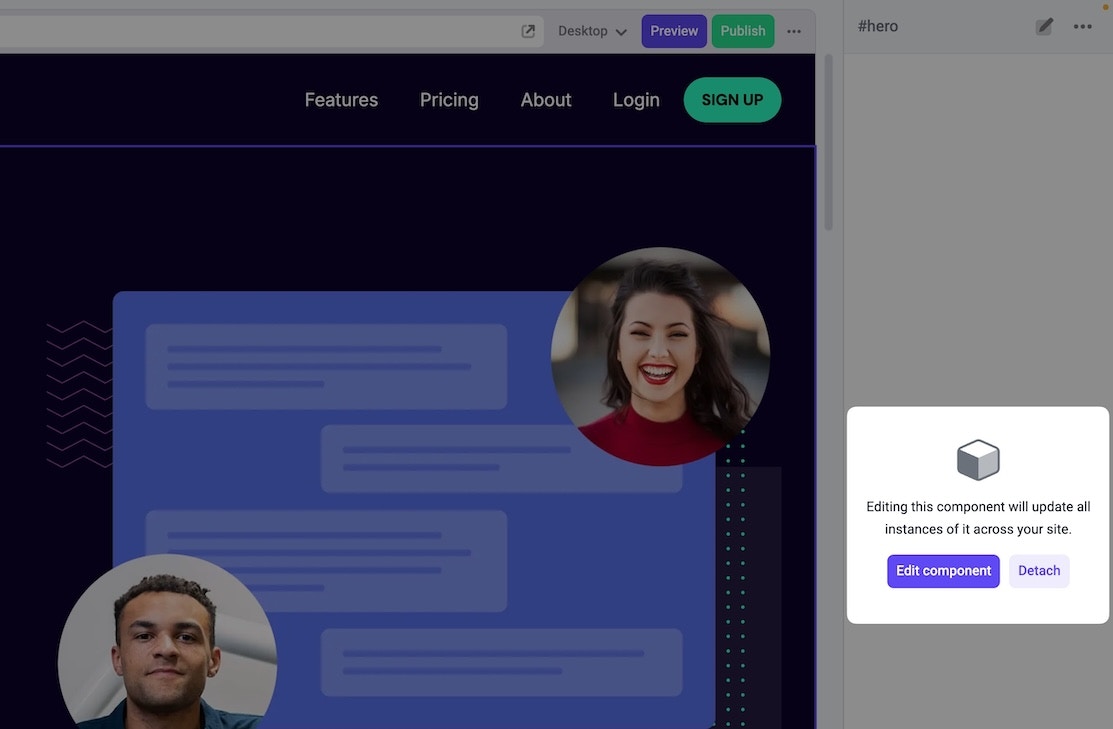
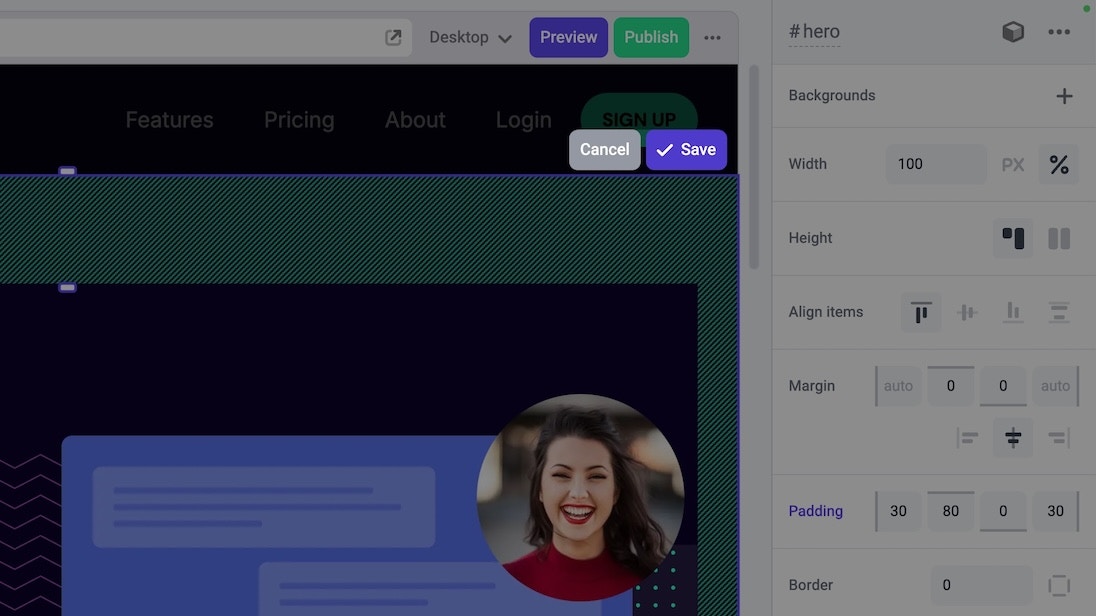
Global component updates are published as separate resources from pages. Learn
more about publishing Global
Components.
Detaching from a Global Component
Changes to a Global Component are propogated to all instances across your site. If you’d like to use a Global Component as a starting point and don’t want to keep it in sync with the original component, you can detach an individual instance. To detach, select the instance of the Global Component in the Canvas. Then, in the Properties Sidebar, click Detach. Remember, once detached, the instance will no longer be updated when the original Global Component is edited.Organizing Global Components
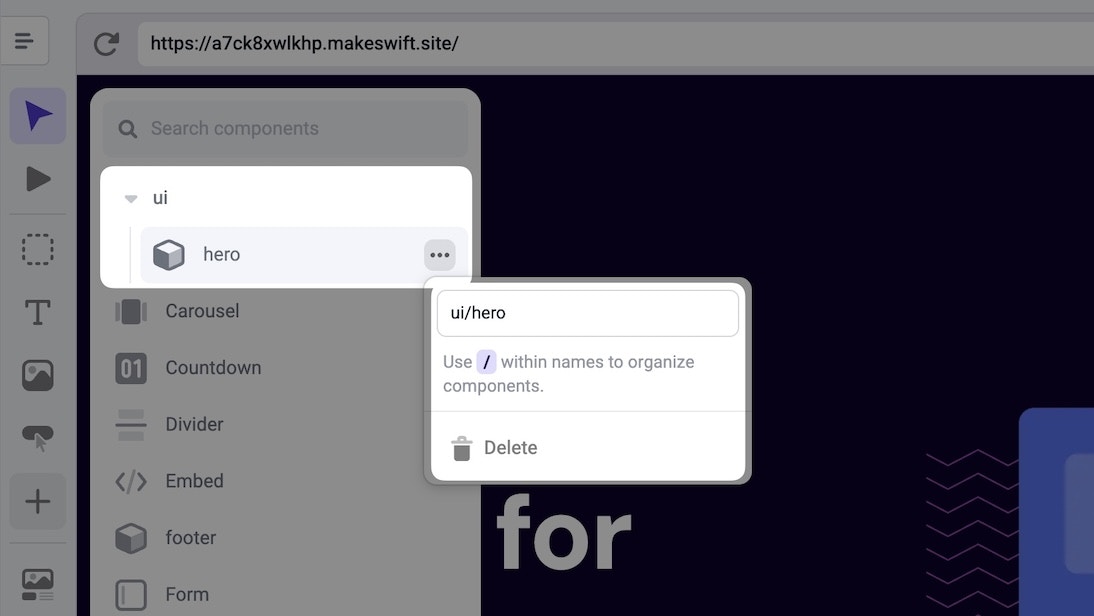
As your list of components grow, you may want to organize them. You can do this by including a/ in the Global Component name. For example, a component with a name of ui/hero will be nested under ui.
Elements
Elements are instances of components on your canvas. While the difference can be subtle, what makes something an element is its unique placement and the specific customization data applied to it—essentially, an element is a component that’s been added and configured in a particular context. There are two types of elements that you may encounter on a page:Elements
Standard elements that are instances of components dragged onto the canvas.
Built-in Elements
Elements on the canvas that can be edited but cannot be moved or deleted
visually
Elements
Elements are instances of components that you can place on a page. This is the more common interaction between your component toolbar and canvas and is the entity that hosts the actual values you set to your components properties. They are the starting point for all Global Components. Elements can be moved, copied, pasted, named, and deleted.Naming elements
You can name an Element by selecting it and changing the default name at the top of the Properties Sidebar. Element names must be alphanumeric and cannot contain any spaces.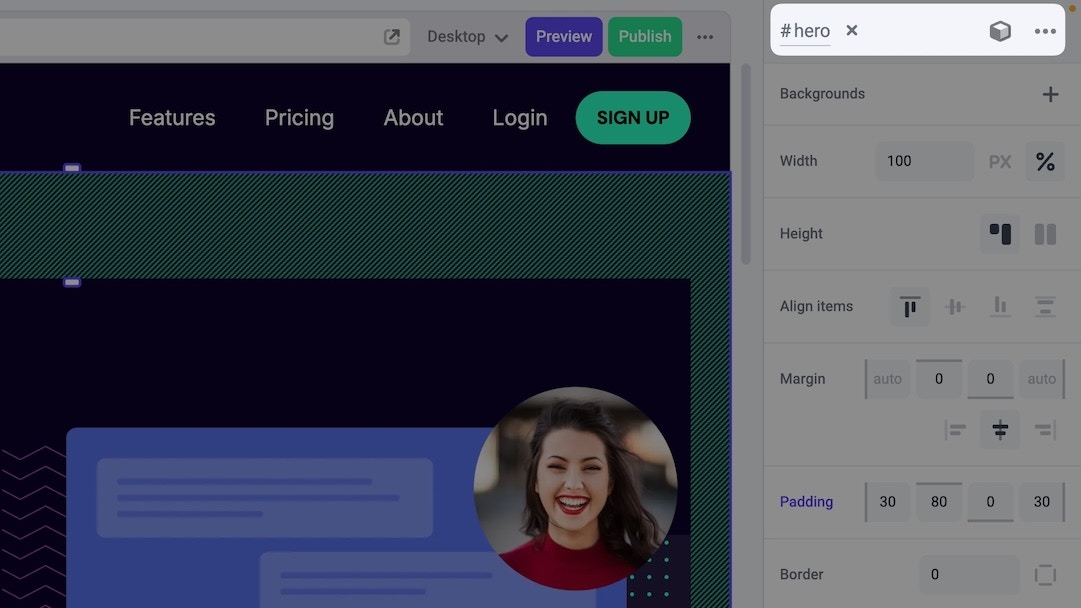
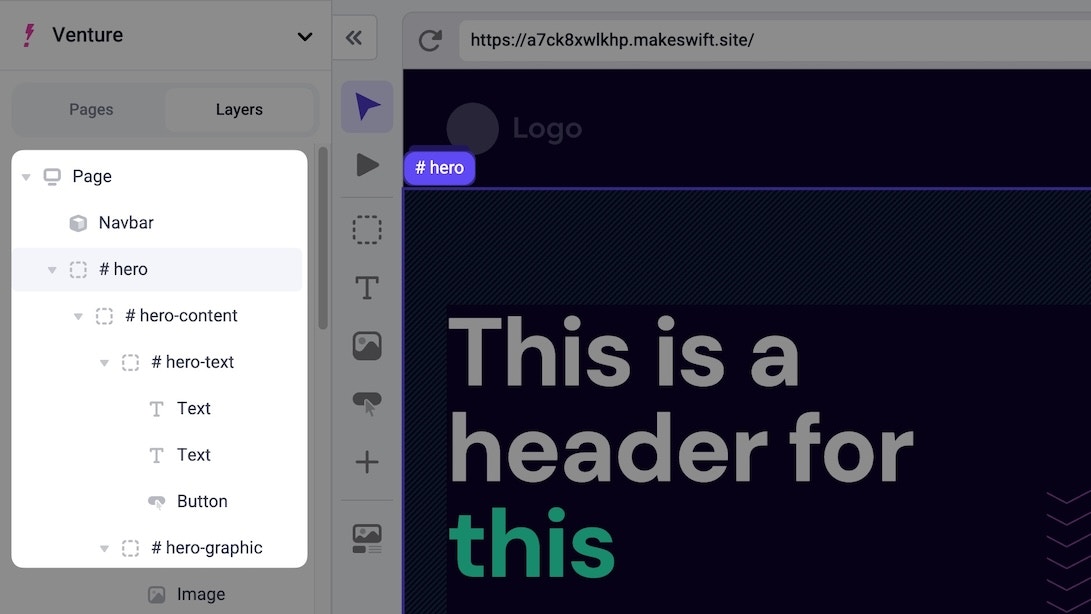
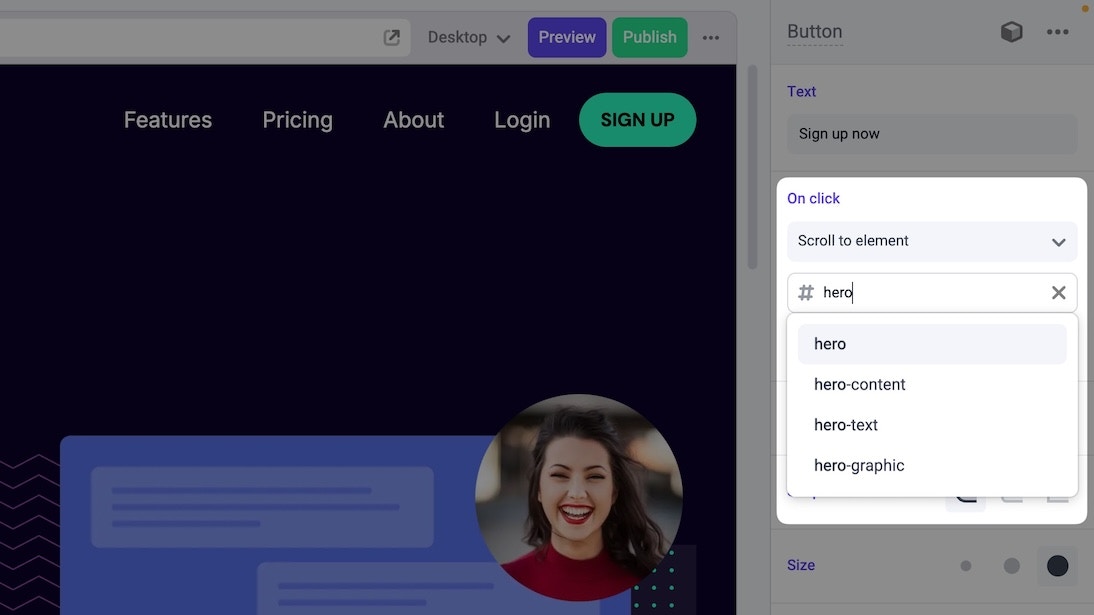
id property added to the element’s HTML. This allows them to be scrolled to with buttons, images, and text links. All elements with custom names will appear in the Scroll to element dropdown found in the on click panel.
Element actions
Actions for selected elements can be found at the top right of the Properties Sidebar or by using keyboard shortcuts.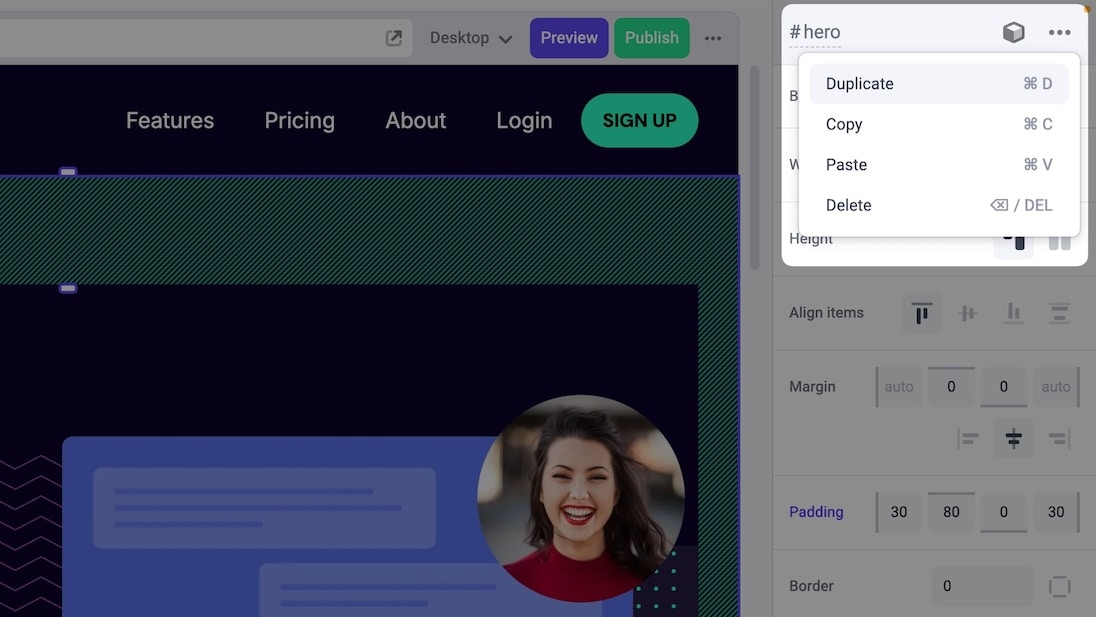
- Duplicate an element
⌘ + D- creates an exact copy, including nested elements, either below or next to the original - Copy an element
⌘ + C- copies the selected element to your clipboard - Paste an element
⌘ + V- places the copied element in the Canvas (you choose exactly where to place it) - Delete an element
DELETE- deletes the selected element
Built-in Elements
These are instances of elements that are placed on the page in code and cannot be moved or deleted visually. What makes these elements and not components is that you can still change the property values within Makeswift, however the behavior is slightly different depending on the configuration. Some Built-in Elements may propogate changes throughout your whole site, while others may be utilized to lock down what is editable on a specific page or page type. They are affectively components that are purpose built to live on a specific page and allow specific editing capabilities.Examples
Here are some common examples of where a Built-in Element may be preferred.Navigation Bar
Implementing a Built-in Element for a Navigation bar allows for all new pages to automatically include a Navigation bar, without having to add it manually. Furthermore, any edits to the Navigation will propagate to all new and existing pages.